
Which setup should I use?
Connect directly with OAuth
For Claude.ai and ChatGPT, or a command-line agent that supports HTTP MCP. Give the assistant your phone's tunnel URL and approve access in Notedog. The tunnel is paid; there is no helper to install or API key to copy.
Run a helper with an API key
For a command-line or desktop agent that launches local MCP tools. It starts @notedog/mcp on your computer, which connects to your phone over your LAN or the tunnel. Create an API key in Notedog first.
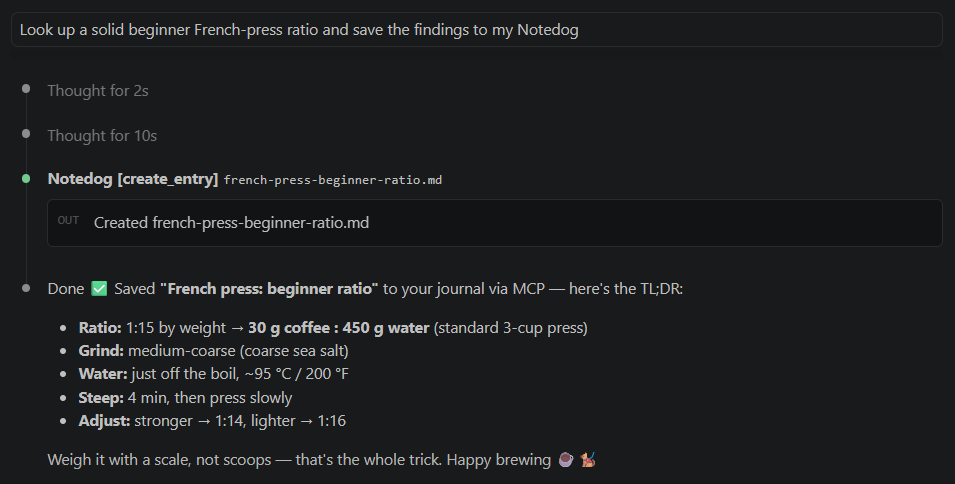
Connect directly with OAuth
Your phone serves a built-in MCP endpoint at https://<your-subdomain>.t.notedog.run/mcp. A cloud assistant connects to that URL, and you approve it with a tap in Notedog (an OAuth consent). There is nothing to install and no API key to copy. The agent gets its own revocable, scoped grant.
Needs the tunnela paid feature. Cloud assistants reach your phone over its public *.t.notedog.run address, which has the real TLS certificate they require. Turn on On the internet (tunnel) first (see remote access). LAN and Tailscale use a self-signed certificate these clients reject. For those, use the local helper below.
Claude.ai (web)
- Open Settings → Connectors and choose Add custom connector.
- Paste
https://<your-subdomain>.t.notedog.run/mcpand add it. - Click Connect; a consent appears in Notedog on your phone. Tap Allow (read, or read-write).
- Turn it on in a chat from the + menu. On Team/Enterprise an admin adds it under organization settings.
ChatGPT
Requires developer mode, whose availability varies by ChatGPT plan. See OpenAI's guide.
- Settings → Apps → Advanced, then turn on Developer mode.
- Settings → Apps → Create app.
- Enter a name and the URL
https://<your-subdomain>.t.notedog.run/mcp; set authentication to OAuth. - Click Scan Tools, approve the consent in Notedog, then Create.
- Use it from the + / tools menu in a chat. (Added tools later? Hit Refresh on the app.)
Claude Code (HTTP)
claude mcp add --transport http notedog \
  https://<your-subdomain>.t.notedog.run/mcp
Run /mcp in a session and finish the browser OAuth flow (approve in Notedog). Add --scope user to use it in every project.
Codex (HTTP)
codex mcp add notedog \
  --url https://<your-subdomain>.t.notedog.run/mcp
Finish the browser OAuth flow and approve the consent in Notedog. Start a new Codex session to load the tools; check the connection with /mcp or codex mcp list.
Tools & access
Both setups offer the same thirteen tools for reading and writing entries. Choose read or read-write when you approve the consent; Notedog enforces that choice on your phone. New tools appear when the assistant reconnects (in ChatGPT, hit Refresh).
Journal operations accept an optional journal name from list_journals. Omit it to use the journal active on the phone, or pass it to work in another journal without changing the phone UI. Permissions remain device-wide, not per-journal.
Run a helper with an API key
@notedog/mcp is a small program your agent starts on your computer (a stdio MCP server). It holds your API key in its own environment and talks to the on-device journal API over your LAN or the tunnel. The key never enters the model's conversation. It is read-only by default, and read-write if you create a key that allows writes.
Step one
Mint a key in the app
Open the Notedog drawer → API keys → Create key, then copy it (it's shown once). Leave Allow writes off for a read-only key, or turn it on to let the agent create, edit, and delete entries. Revoke any key from the same screen.
Step two
Pick a base URL
Tunnel (paid)
Turn on On the internet (tunnel) in Notedog and use https://<your-subdomain>.t.notedog.run. It works from anywhere. (See remote access.)
LAN
Turn on On this network in Notedog and use the address it shows: https://<phone-ip>:<port>. Your computer must be on the same network. Set NOTEDOG_INSECURE_TLS=1 so the helper accepts the phone's self-signed certificate.
Step three
Register with your agent
It's a standard stdio MCP server, so every client runs the same command, npx -y @notedog/mcp, with two environment variables: NOTEDOG_BASE_URL and NOTEDOG_API_KEY (add NOTEDOG_INSECURE_TLS=1 for a LAN address). Only where you put them differs.
Claude
With the Claude CLI:
claude mcp add notedog -s user \
  -e NOTEDOG_BASE_URL=https://<your-subdomain>.t.notedog.run \
  -e NOTEDOG_API_KEY=<paste-key> \
  -- npx -y @notedog/mcp
Check it with /mcp in a session, or claude mcp list.
Or write the JSON yourself. Claude Code reads a project .mcp.json, and Claude Desktop its claude_desktop_config.json; both use the same mcpServers shape:
{
  "mcpServers": {
    "notedog": {
      "command": "npx",
      "args": ["-y", "@notedog/mcp"],
      "env": {
        "NOTEDOG_BASE_URL": "https://<your-subdomain>.t.notedog.run",
        "NOTEDOG_API_KEY": "${NOTEDOG_API_KEY}"
      }
    }
  }
}
In a committed .mcp.json, reference an env var (as above) rather than pasting the key into the repo.
Codex
Add an entry to ~/.codex/config.toml:
[mcp_servers.notedog]
command = "npx"
args = ["-y", "@notedog/mcp"]
env = { NOTEDOG_BASE_URL = "https://<your-subdomain>.t.notedog.run", NOTEDOG_API_KEY = "<paste-key>" }
Gemini
Add to ~/.gemini/settings.json (or a project .gemini/settings.json):
{
  "mcpServers": {
    "notedog": {
      "command": "npx",
      "args": ["-y", "@notedog/mcp"],
      "env": {
        "NOTEDOG_BASE_URL": "https://<your-subdomain>.t.notedog.run",
        "NOTEDOG_API_KEY": "<paste-key>"
      }
    }
  }
}
Pi
Pi doesn't load MCP servers by design. It uses small CLI tools that it calls from bash. So give Pi your journal through the REST API directly. Put the key in its environment and let it call the endpoints with curl.
export NOTEDOG_BASE_URL=https://<your-subdomain>.t.notedog.run
export NOTEDOG_KEY=<paste-key>

# Pi can then read via curl, and write too with a read-write key. For example:
curl -H "Authorization: Bearer $NOTEDOG_KEY" \
  "$NOTEDOG_BASE_URL/api/v2/entries?q=design"
A short skill or note telling Pi the two env vars and linking the API reference is enough for it to discover the endpoints. If you'd rather reuse the MCP server itself, a bridge such as mcporter can expose @notedog/mcp's tools over a CLI that Pi calls from bash.
Other MCP clients
Cursor, Windsurf, Cline, and most others take the same three pieces in their own MCP-server config: command npx, args ["-y", "@notedog/mcp"], and the two env vars.
Then ask in a session, for example "search my journal for the tunnel bug and summarize it."
Don't commit the keyPrefer a user-level config (or an env-var reference) over a shared project file, so the key never lands in a repo.
Tools
Read tools work with any key:
| Tool | What it does |
|---|---|
list_journals | List every journal on the device and show which one is active on the phone. |
list_entries | Browse entries newest-first. Paginated: pass the returned nextCursor back as cursor. |
search_entries | Full-text search, best match first; supports from:/to: date filters, path: to narrow by folder or file, has:todo, has:attachment, and - to exclude. Needs a query. Use list_entries to browse. Paginated. |
get_entry | Full content of one entry by path, plus the timestamp to pass to update_entry as baseTimestamp. |
related_entries | Entries with content similar to a given one, even without links between them. Empty when there's no good match. |
changes_since | What changed since a commit id or date: entries added, modified, deleted, renamed. Lets an agent process only what's new. App 1.0.344+. |
list_directory | List a folder (subfolders + entries); omit the path for the root. |
recent_entries | Entries recently opened on the phone. This shows what you have been reading, not what you created last. 20 by default; raise with limit. |
journal_info | Journal name + metadata; defaults to the journal active on the phone. |
Write read-write key tools return 403 to a read-only key:
| Tool | What it does |
|---|---|
create_entry | Create a new entry (auto-named if no path given). Returns { path }. |
append_to_entry | Append text to an existing entry, keeping its current content. Guarded against a concurrent edit, so it can't clobber a change made on the phone mid-append. |
update_entry | Overwrite an entry's whole content, optionally renaming it. Pass baseTimestamp (the timestamp from get_entry) and a write that would overwrite someone else's edit is refused instead. |
delete_entry | Delete an entry. On a Git-backed journal this is a revertible commit. |
Every journal operation accepts an optional journal name returned by list_journals. Passing one targets only that operation and never switches the phone UI.
On a Git-backed journal, each write lands as its own commit (with the key's name in the message), so an agent's changes are easy to review and revert.
Updating
An agent reads the MCP tool list once, when a session starts. After updating, start a new session to pick up new tools.
npx setup (above)
npx pulls the latest published version, so a fresh session is usually enough. To force it: npx -y @notedog/mcp@latest (or npx clear-npx-cache); pin a version with @notedog/mcp@<version>.
Global install
npm i -g @notedog/mcp@latest.
Safety
- The key lives in the MCP process's environment and is sent as a bearer token. It never enters the model's context.
- Read-only is the default; mint a separate read-write key only when you want the agent to make changes, and revoke it when you're done.
- The phone enforces scope. A read-only key can't write, and over OAuth a read-only grant doesn't get the write tools. Every write is its own commit, so anything an agent does is reviewable and revertible.
Want the raw HTTP underneath the tools? See the API reference. And if you want an agent that maintains index notes on a schedule, there's a recipe for that.