
Your first five minutes
Step one
Install and open
Get Notedog from Google Play and open it. There's nothing to sign up for and no special permissions to grant. It works offline from the first launch.
Step two
Create your first journal
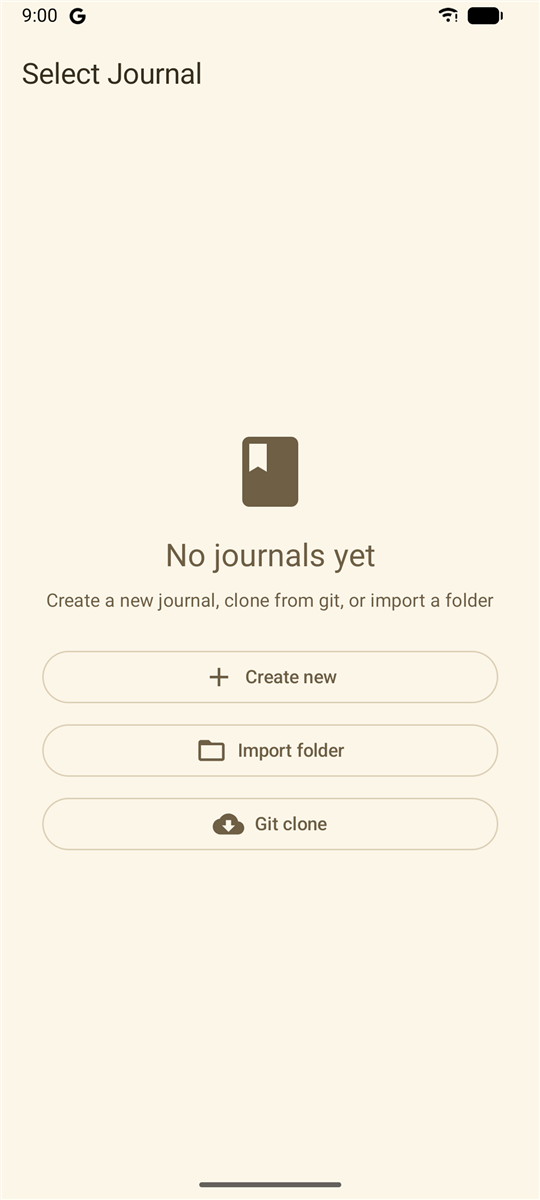
On the first screen, tap Create new. The dialog suggests a name; keep it or type your own. A journal is just a folder of Markdown files. If you already have notes, you can instead use Git clone to pull in a Git repository (what Notedog does to your repo), or Import folder to bring in files from your device.
Step three
Write your first entry
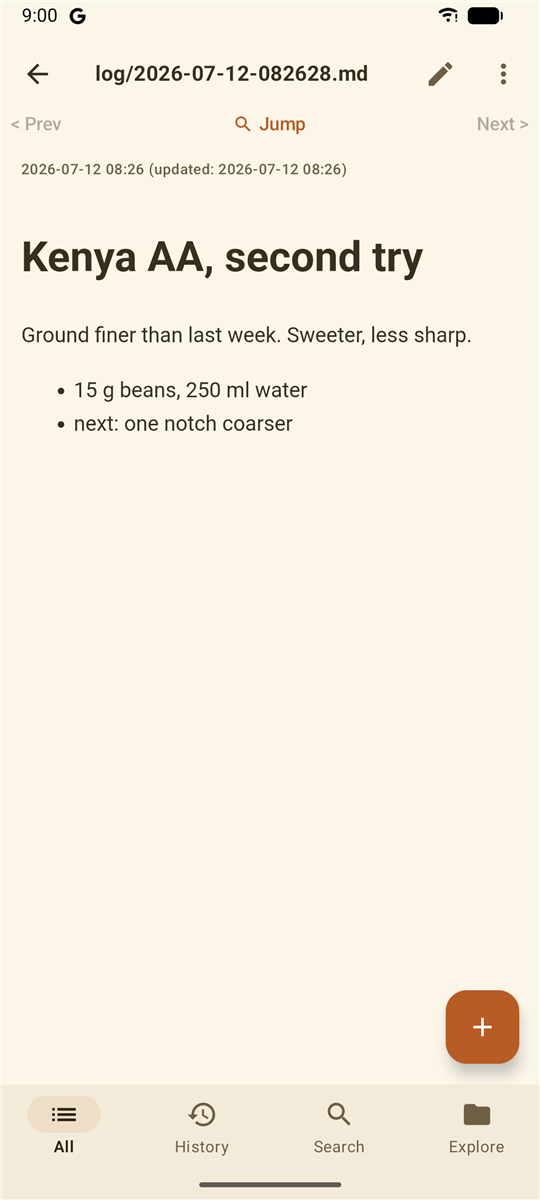
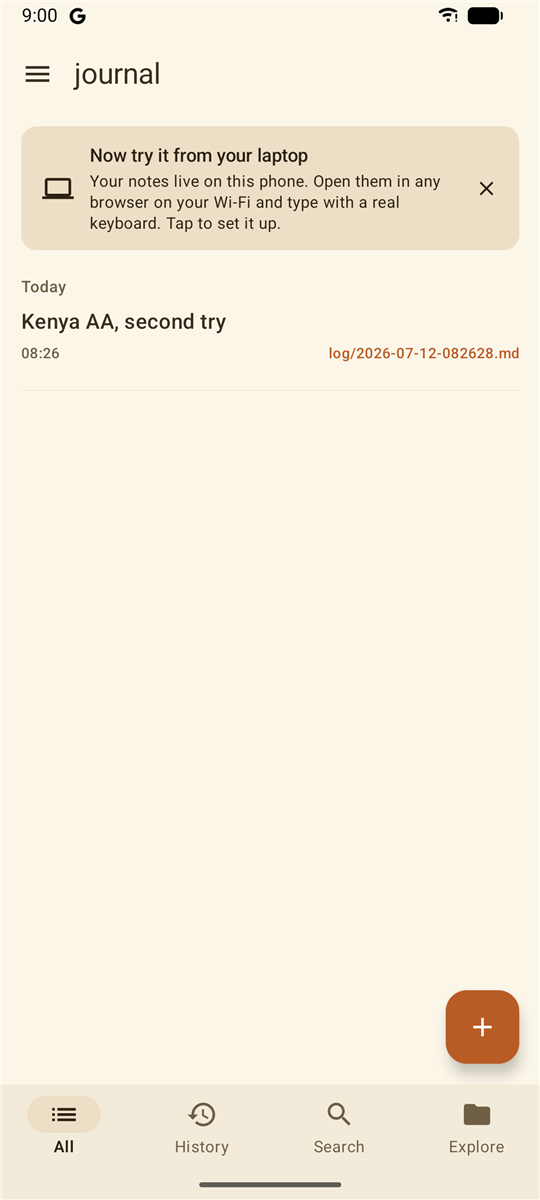
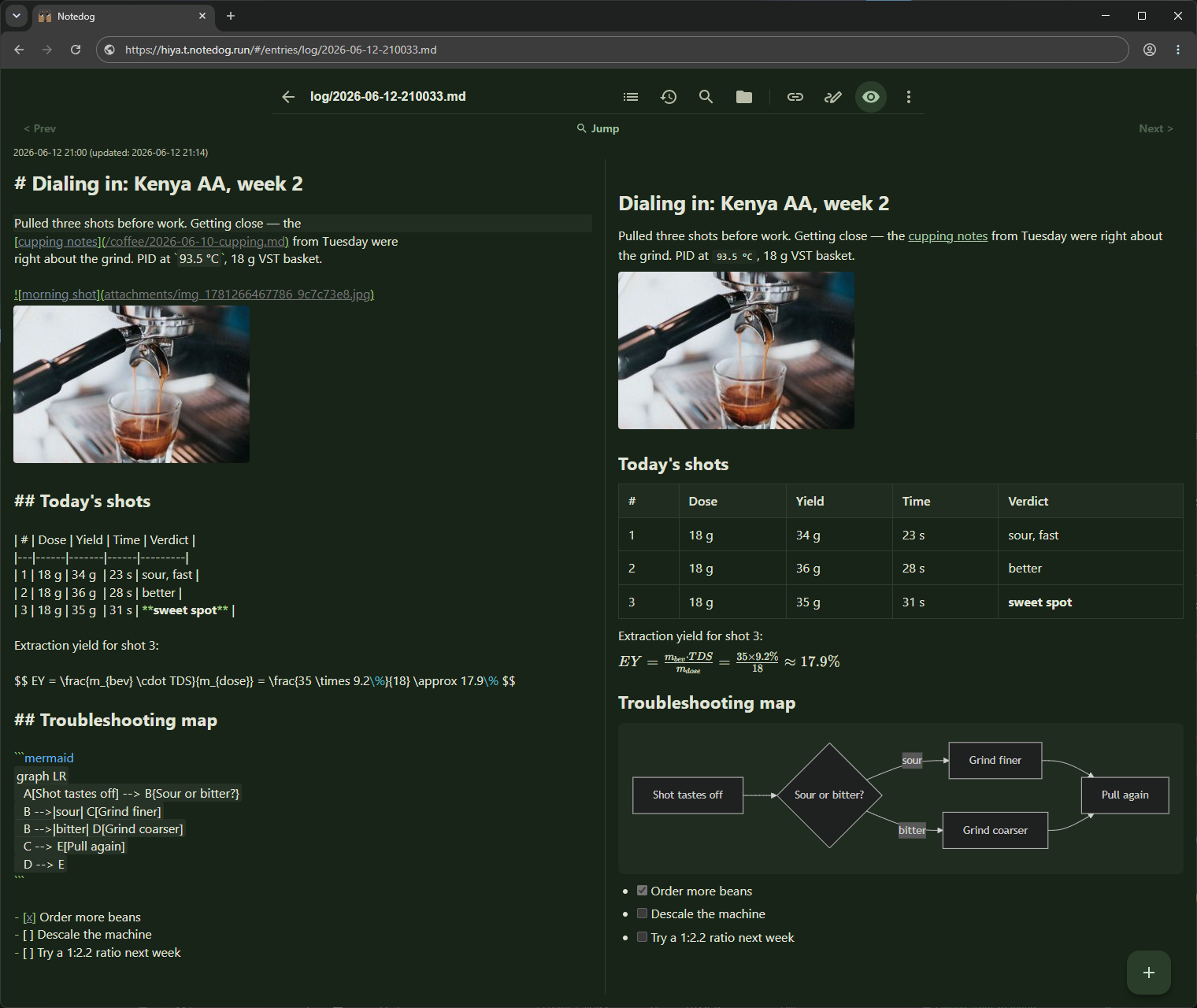
Tap + to start a new entry and begin typing in Markdown. There is no save button: Notedog saves as you write and names the file for you, like log/2026-07-12-090000.md. Tap the eye icon to see the rendered entry. Each entry is a plain .md file kept on your phone, so it stays yours to move, back up, or open in any other editor.
Step four
Edit from your browser
Your phone runs a small web server of its own, so a browser on your laptop can edit the same notes with a full keyboard and a larger screen.
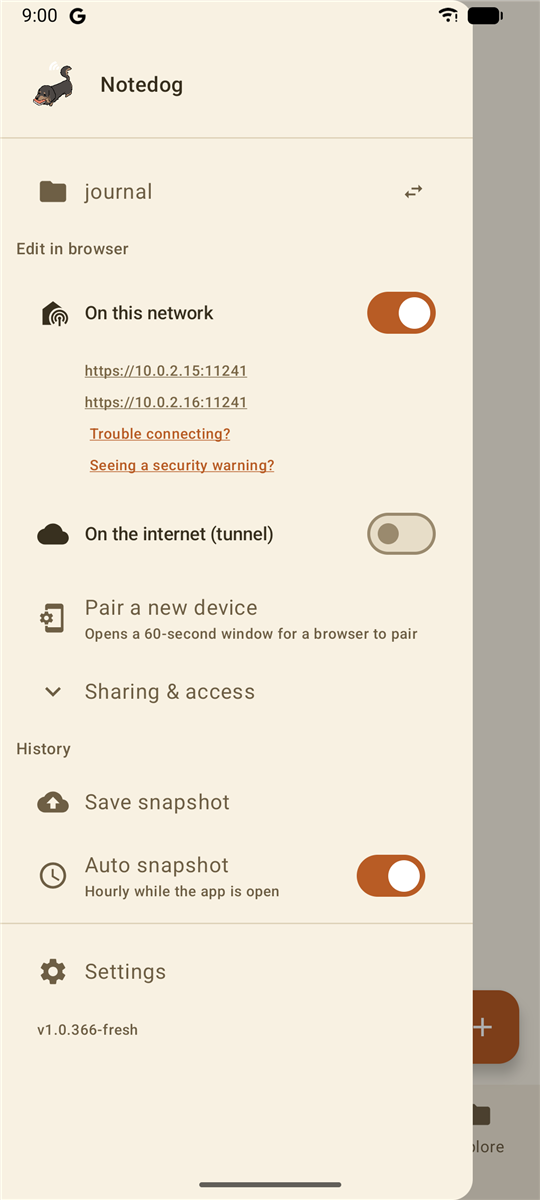
- Open the drawer in Notedog and turn on On this network. The first time, the app asks about notifications and battery; allowing both keeps the server running.
- Tap Pair a new device. This opens a 60-second pairing window.
- On a computer joined to the same Wi-Fi, open the
https://…address the app shows and click Request Pairing. - Approve the Pairing Request that appears on your phone.
Good to knowThe local address uses a self-signed certificate, so your browser shows a one-time security warning the first time you open it. That is expected: the page comes straight from your phone, with no outside server involved. Choose Advanced, then Proceed. If your laptop can't be on the same network, see the three ways to reach your phone.
Make it yours
That's all you need to start journaling. When you want more, here's where to go next:
Rich formatting.
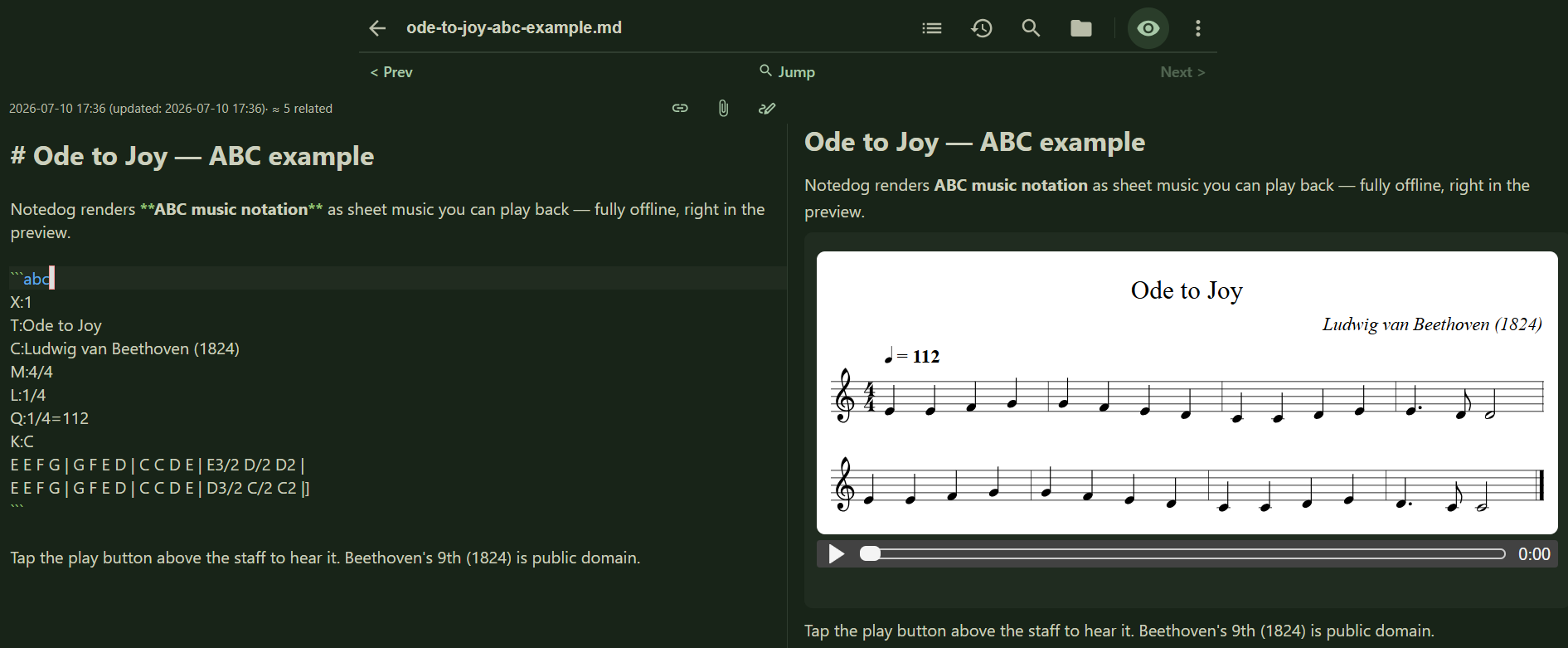
Mermaid diagrams, LaTeX math, ABC music notation, tables, code, and image attachments, all with live preview. Formatting guide
Themes and the editor.
Pick a color theme under Settings → Appearance on the phone, or with the Theme button in the browser editor. Dark mode can follow your system, and the browser editor has optional Vim keybindings.
Back up with Git.
Connect a journal to GitHub, GitLab, Gitea, or your own server, and commit by hand or automatically. Set up a GitHub token · Encrypt the remote
Reach it from anywhere.
Use the built-in tunnel or Tailscale when you're away from your home network. Remote access
Connect an AI assistant.
Let Claude, ChatGPT, or Claude Code read your journal over MCP, and write to it when you allow that. Connect an agent
Good to know
Your files, your exit plan.
Entries live on your phone as plain Markdown, and you can export a whole journal as a ZIP whenever you like. Privacy policy
Free and paid.
The app, local browser editing, Git backup, and the Tailscale option are free. The built-in internet tunnel is the one paid subscription (US$0.99 a month in the US, with a free trial), and it needs a Google sign-in.
Can't reach it from your browser?
Some Wi-Fi networks keep devices from seeing each other. On those, use the tunnel or Tailscale instead. See remote access
That's the whole loop: write on your phone, edit from your laptop, keep the files.