
Who this is forpeople who already sync a journal with Git and are comfortable running a few commands on a laptop. Setup takes about fifteen minutes. After that, sync works exactly as before.
How it works
Notedog uses git-remote-sealed, an open Git remote helper. The remote repository, called a vault, holds only Git bundles encrypted with age. Your local repository stays a normal Git repository.
- Each device has its own key. The secret half is generated on the device and never leaves it. To let a new device read the vault, you enroll its public key from a device that already can. The list of enrolled keys is stored inside the encrypted vault, so every device sees the same one.
- The format is open. If Notedog or the helper disappeared tomorrow, you could still recover every note with stock
gitandage. See Recover without Notedog. - The remote host learns very little. It sees file sizes, the number of files, when you push, and how many keys the vault is encrypted to. That is all.
The short version of the design is in How a sealed vault works. The full specification and threat model are in FORMAT.md.
What you need
- A laptop running Linux or macOS, with
gitinstalled. The vault is created from the laptop; the phone joins it. Windows is not supported yet. - age, which provides the
age-keygencommand. - A new, empty repository on GitHub or another Git server. Do not reuse a repository that already holds your journal in plain text; that history would stay readable on the remote host.
- A personal access token for the phone, if the remote host is GitHub.
1. Install the helper on the laptop
Download a build from the releases page and put it on your PATH, or build it with Cargo:
cargo install --git https://github.com/hibariya/git-remote-sealedCheck that it is found:
git-remote-sealed --version2. Create the vault from the laptop
Start from a local copy of your journal. If your journal already lives on the phone, clone its current Git remote to the laptop first, or export it from Notedog. If you are starting a fresh journal, an empty repository with one commit is fine.
Generate the laptop's key and a separate recovery key. Keep the recovery key somewhere offline, such as a password manager or a USB stick in a drawer. It is the only way back in if you lose every device.
age-keygen -o ~/.config/sealed-key.txt
age-keygen -o ~/recovery-key.txt   # move this file somewhere safe afterwards
Each key file prints its public half, a line starting with age1. Then, inside the journal repository:
git config sealed.identity ~/.config/sealed-key.txt
git remote add origin sealed::git@github.com:YOU/journal-vault.git
git push -u origin main
git-remote-sealed enroll age1...   # the recovery key's PUBLIC half
The sealed:: prefix tells Git to hand the push to the helper. The first push encrypts the vault to the laptop's key only; enroll adds the recovery key and rewrites the vault so everything is readable by both. Open the repository on the remote host afterwards: you will see a few .age files and nothing else. The commit dates on the remote host are deliberately fixed, so "57 years ago" is expected.
3. Get the phone's key
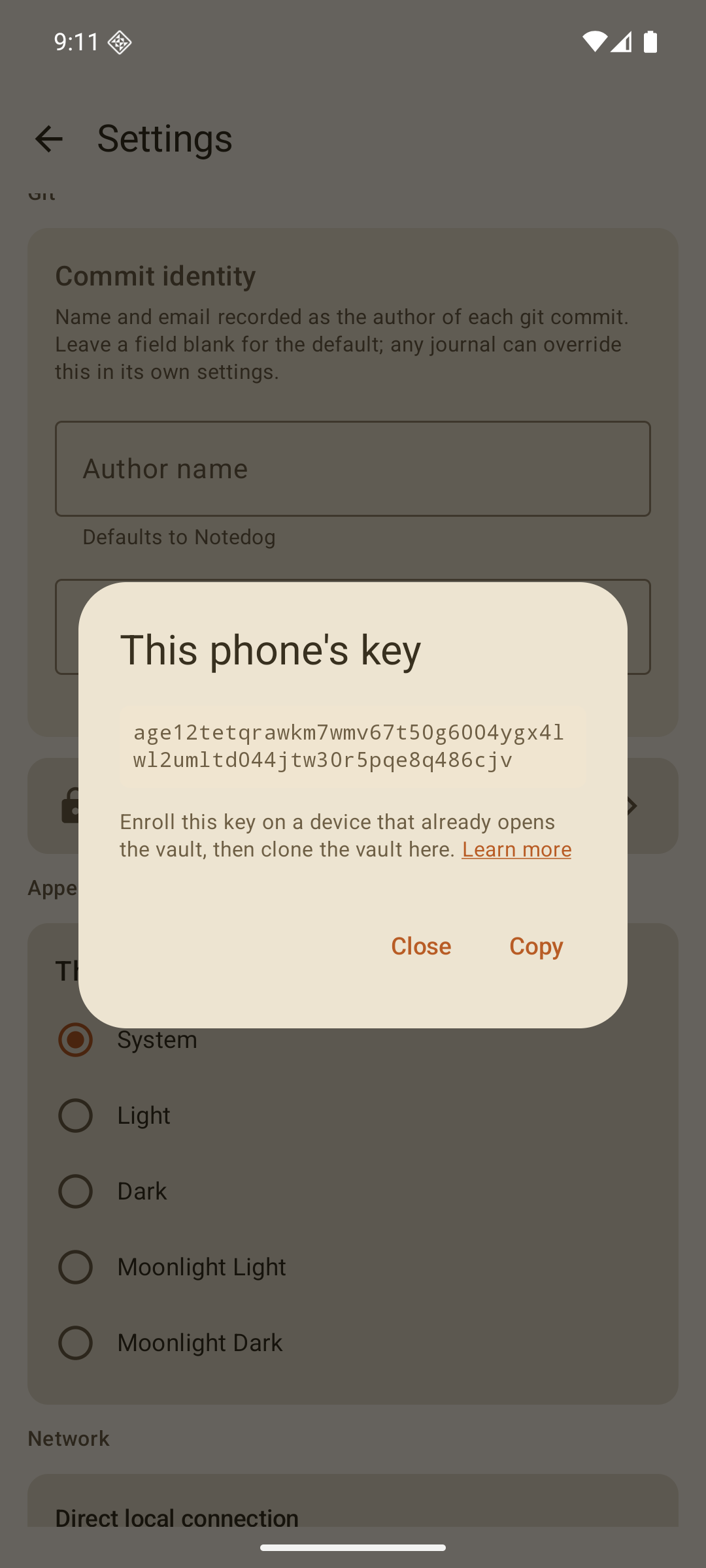
- In Notedog, open the menu, then Settings, and tap This phone's key for encrypted vaults. On a fresh install with no journal yet, skip to step 5 instead: the first Clone shows the same key.
- Tap Copy and send the key to your laptop. It cannot decrypt anything, but anyone who knows it could write encrypted files into your vault, so send it to yourself rather than posting it anywhere public.
The key belongs to the phone, not to a journal. It is created the first time you look at it and stays the same from then on.
4. Enroll the phone on the laptop
One command. It records the phone's key in the vault and rewrites the vault as one snapshot encrypted to every key, so the phone can read the whole history from its first clone.
git-remote-sealed enroll age1... # the phone's keyAt any time, git-remote-sealed info shows which keys the vault is encrypted to. The list is stored inside the encrypted vault, so every device sees the same one.
5. Clone on the phone
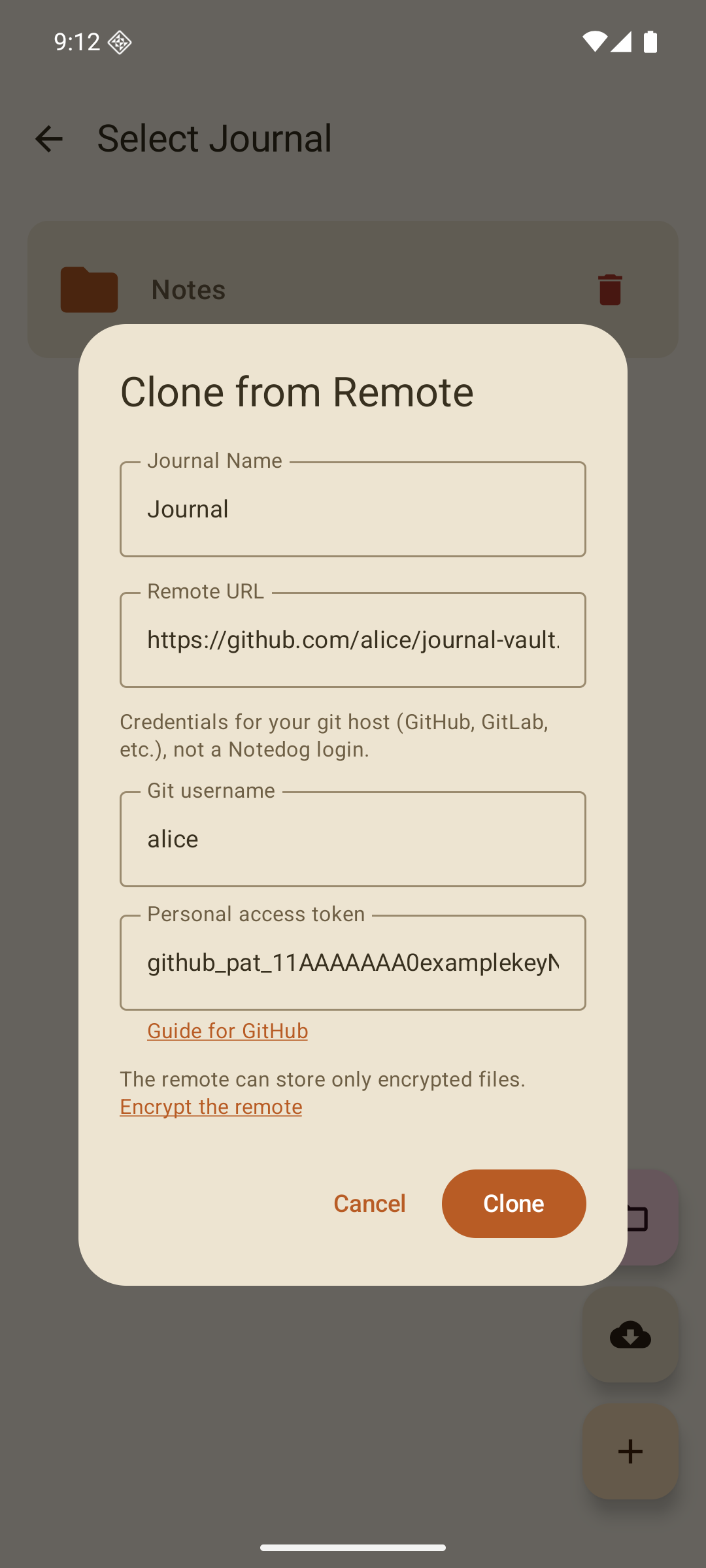
Journal name:
any name you like.
Remote URL:
the plain HTTPS URL of the vault, such as https://github.com/YOU/journal-vault.git. No sealed:: prefix; Notedog adds it.
Username and token:
your host login and a personal access token, as for any private repository.
Tap Clone. This is the same dialog as for any Git repository; there is no encryption setting to choose. Notedog sees that the remote is a vault, decrypts it with the phone's own key, and opens the journal. It also learns the vault's full key list from the vault itself, so its first sync needs no extra step.
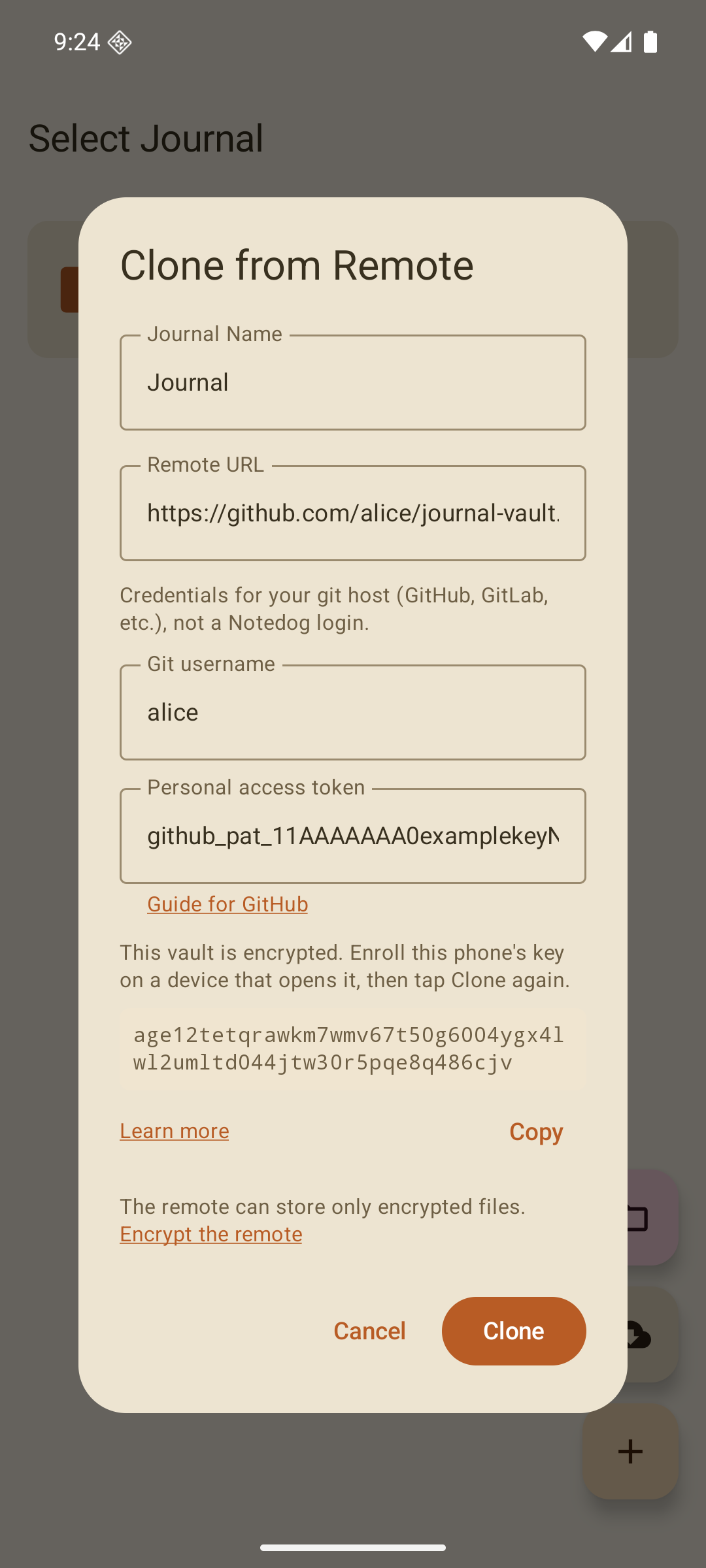
If you tap Clone before step 4 is done, the dialog stays open and shows the phone's key with a Copy button. Enroll it, then tap Clone again.
Everyday use
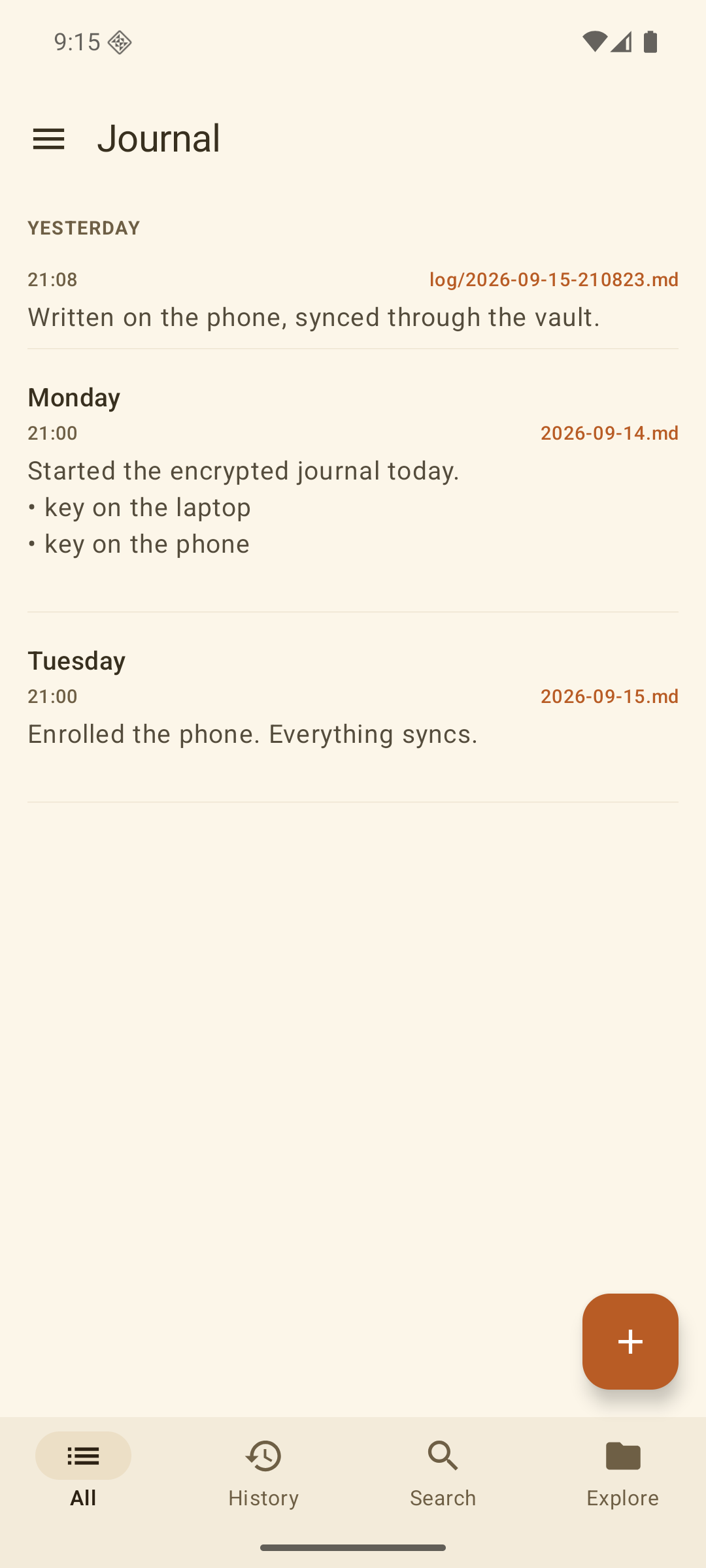
- Sync as usual. Auto sync, manual sync, force pull and force push all work. Nothing changes in the editor, the web interface, or the MCP server.
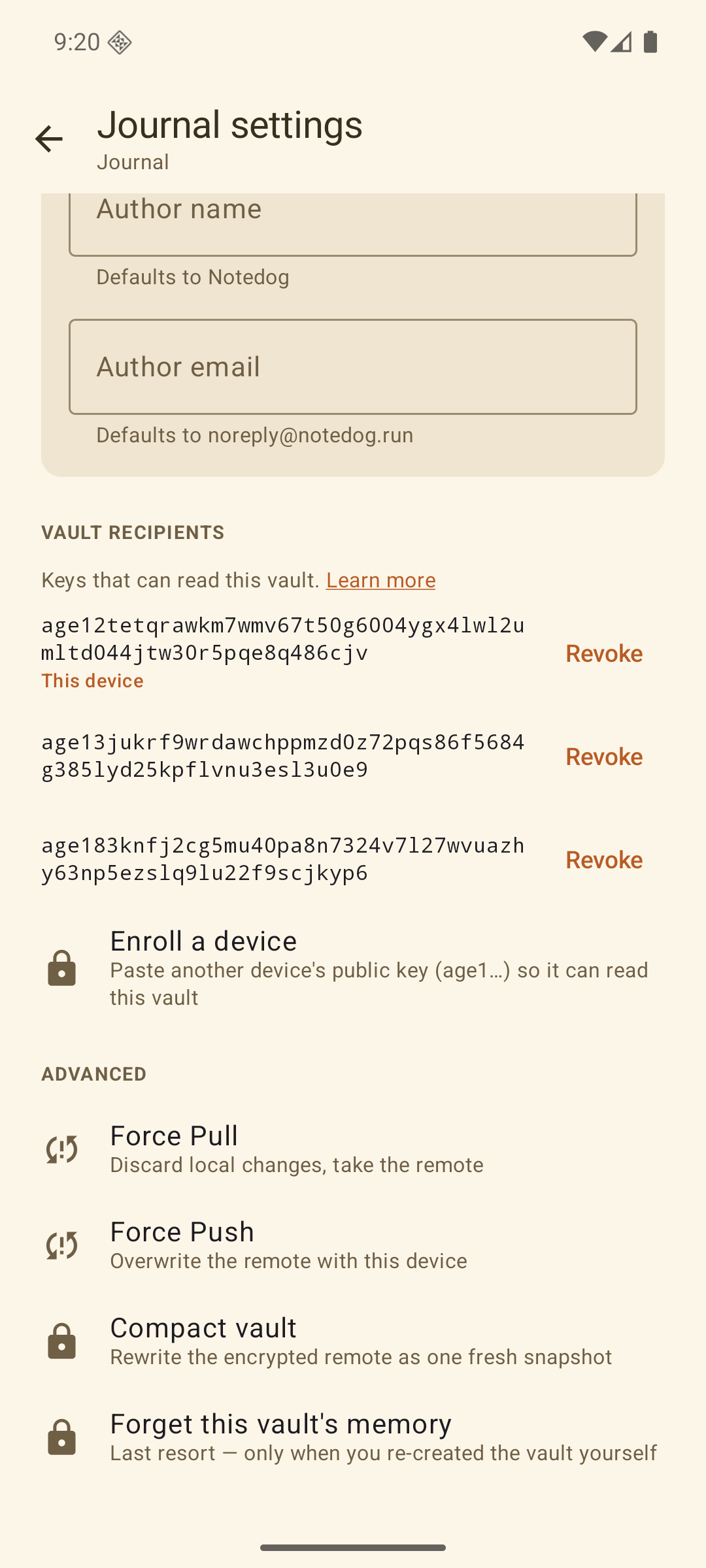
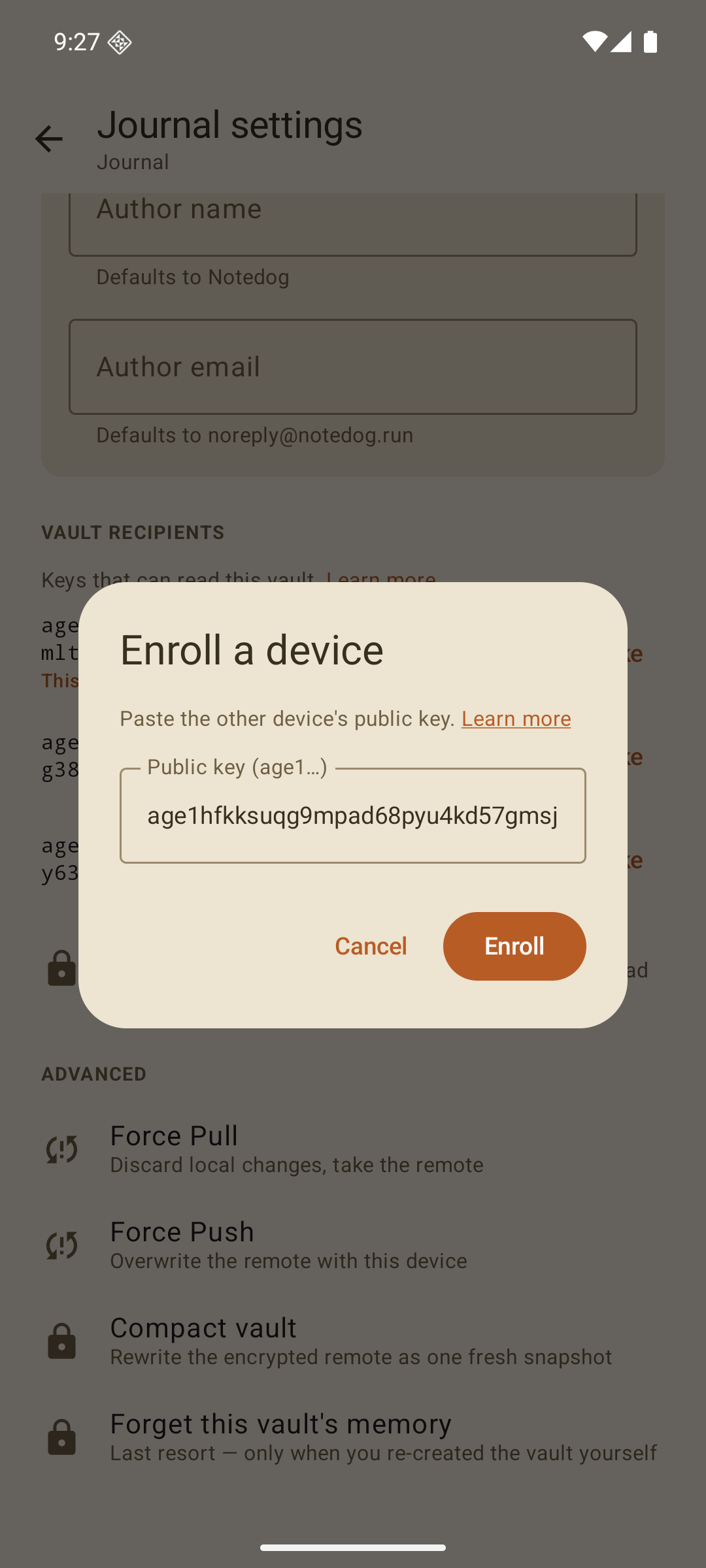
- Another device joins the same way: copy its key, enroll it on any device that already opens the vault, then clone. On the phone, Enroll a device is in Journal settings, next to the list of keys the vault is encrypted to.
- Removing a device is Revoke on that key, or
git-remote-sealed revokeon the laptop. The vault is rewritten so new content is unreadable to the removed key. Copies the remote host kept from before, or that the device already downloaded, are not taken back. - Compact now and then. Each push adds a small encrypted file. Compaction folds them into one snapshot and is the moment deleted history actually disappears from the remote host. Compact vault is in Journal settings.
- Turning it off. Open Journal settings, then Git settings. The remote address there starts with
sealed::, which Notedog added when it found the vault. Replace the whole address with a plain repository URL and save. Notedog asks you to confirm, because the next push sends your notes in plain text to that remote. The vault and the phone's key are kept; put thesealed::address back to return.
What it does not protect
- Your notes on the phone and laptop are not encrypted by this feature. Use device encryption and a screen lock for that.
- The host can see sizes and timing, and can refuse to serve the vault or serve an old copy. Every device remembers the newest state it accepted and rejects a rollback, but a brand-new device has nothing to compare against on its first clone.
- Anyone holding a recipient key can also write to the vault. Guard the recovery key like a password.
- If you lose every device and the recovery key, the notes are gone. There is no reset, because nobody else has a key.
Recover without Notedog
The encrypted files are ordinary Git bundles. With a copy of the vault and one secret key, stock tools get the repository back:
age -d -i key.txt 1-full.bundle.age > full.bundle
git clone --bare full.bundle recovered.git
The complete procedure, including vaults with several bundles or split files, is Appendix A of the format specification.
Troubleshooting
"This identity doesn't open this vault" when cloning
The phone's key was not enrolled yet, or you copied a different key. Compare the key in the clone dialog with git-remote-sealed info on the laptop, repeat step 4, then clone again.
"This vault does not record its keys yet"
The vault was created with a helper older than 0.3.0. Run git-remote-sealed upgrade once from any device that can read it, or tap Upgrade vault in Journal settings. Pushes are refused until then; reading still works.
Notedog says the vault's memory does not match
The remote looks like a different vault than the one this journal joined, or an older state of it. If you replaced the repository on purpose, Forget this vault's memory in Journal settings clears the check. If you did not, stop and look at the remote host before syncing.